Today, we will walk through the Business Dashboard and its features, one step at a time.
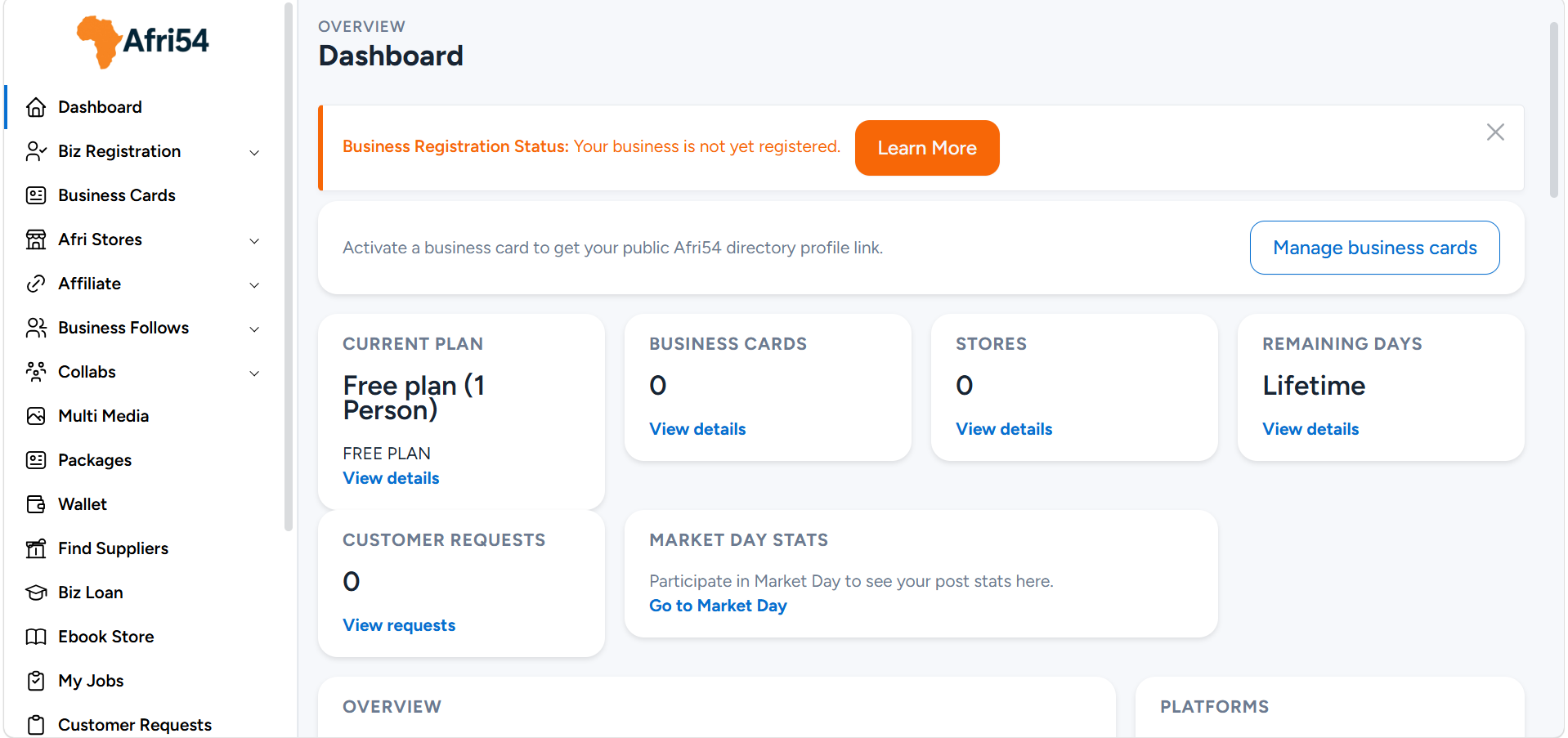
1. Dashboard
The first navigation item you will see after logging into your business dashboard is the Dashboard.
It provides a quick overview of the platform, including shortcuts and key feature statistics.
2. Business Registration
The next section is Business Registration, which contains two sub-sections:
- Find Registrar
- My Submissions
Find Registrar
When you click on “Find Registrar,” you will see a list of accredited business registration companies and agents available in your country. Simply select your country from the dropdown menu, and the system will display the available registrars.
Why the Registrar Feature?
This feature enables Afri54 to connect you with trusted and accredited agents who can assist you in registering your business with the appropriate government agencies in your country.
How It Works
- Select your country from the dropdown menu. The system will display a list of available registrars in your country.
- Click “Fill Form” to initiate the business registration process.
- Review the services offered by the registrar, along with their associated costs.
- Proceed to make payment, including any applicable platform charges.
- Submit the required information and documentation to move forward with your request.
- Communicate directly with the registrar if you need assistance or have any questions.
- Wait for the completion and delivery of your request.
- You can track the progress and view details under the “My Submissions” section.
3. Business Card
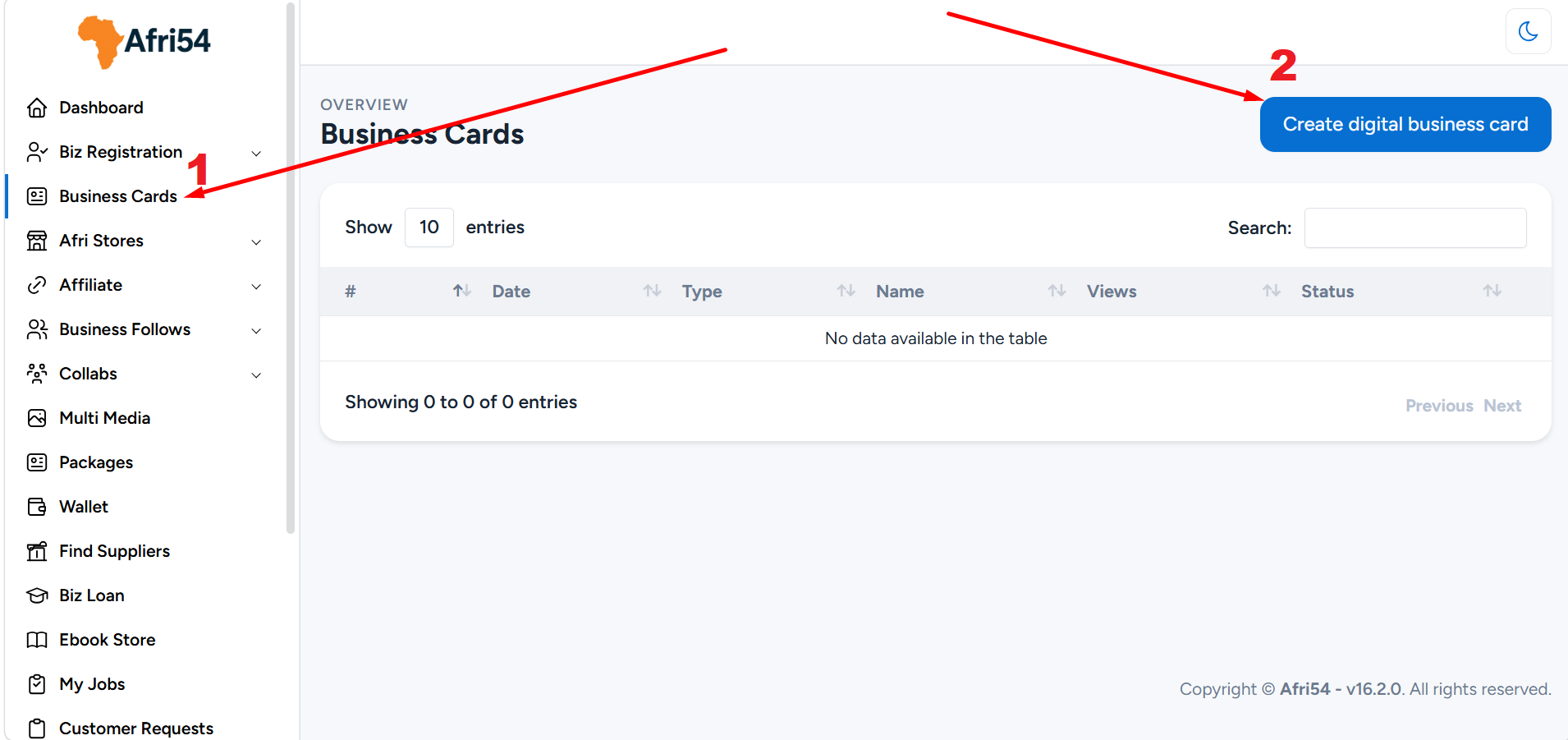
Next is the Business Card section.
When you click on this option, you will see a blue button labeled “Create Digital Business Card.” This is where you can create and manage your Digital Business Card.
Once set up, it will instantly reflect in your business listing
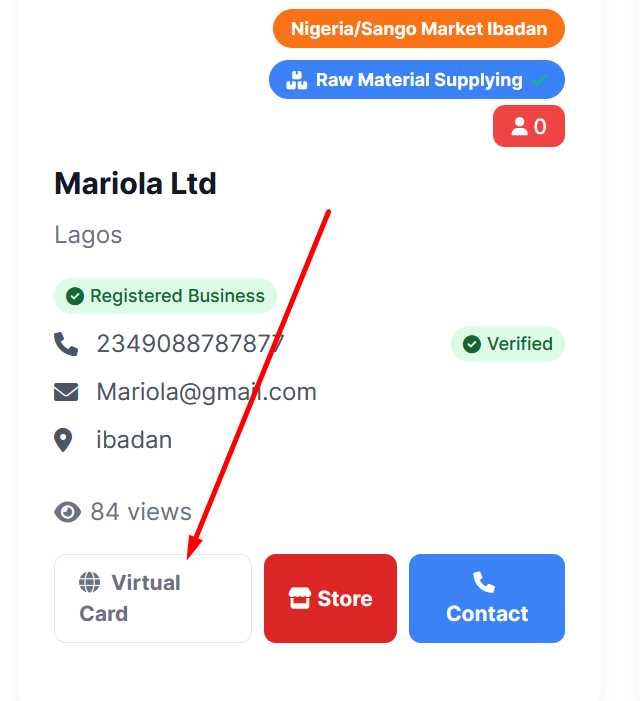
In this guide, the terms Digital Business Card, Virtual Business Card, DBC, and Business Card are used interchangeably and refer to the same feature. To learn how to create and manage your Digital Business Card, please click here
If you would prefer professional assistance, you can hire a designer to set up your DBC for you at a cost of $5. Click here to get started.
4. Afri Store
Next is the Afri Store section.
When you click on Afri Store, you will find two sub-sections:
- Categories
- Afri Stores
A. Before you can upload products to your Afri Store, you must first create categories.
To get started, click on Afri Store, then select Categories, and click the “Create New” button to set up your product categories.
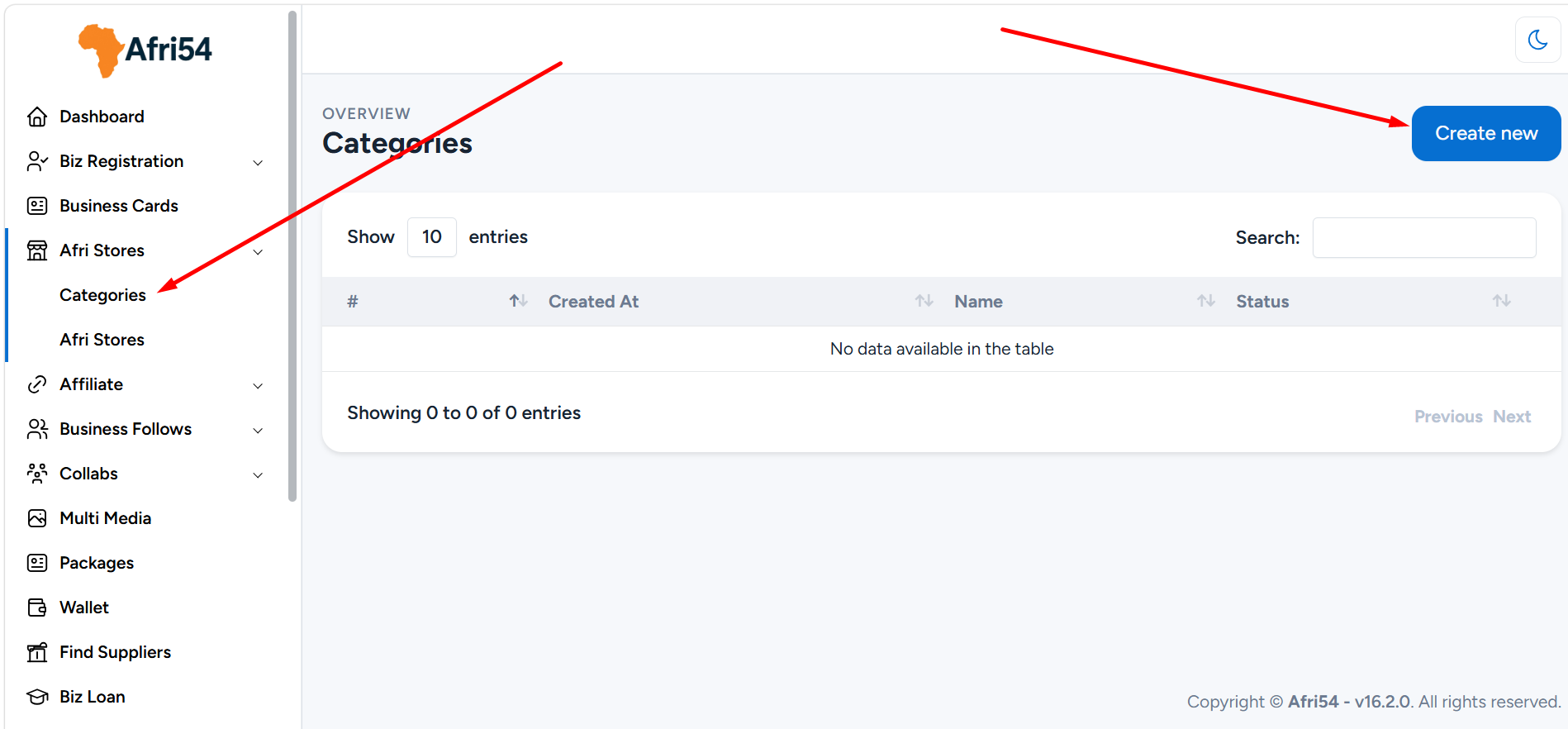
B. Categories help you organize your products effectively. For example, if you sell a variety of items such as shoes, bags, and sunglasses, you should create a separate category for each. This makes it easier to assign products to the appropriate sections during upload.
C. Once that is done, click on Afri Store to start upload your products to Afri Store. Click on Create new store
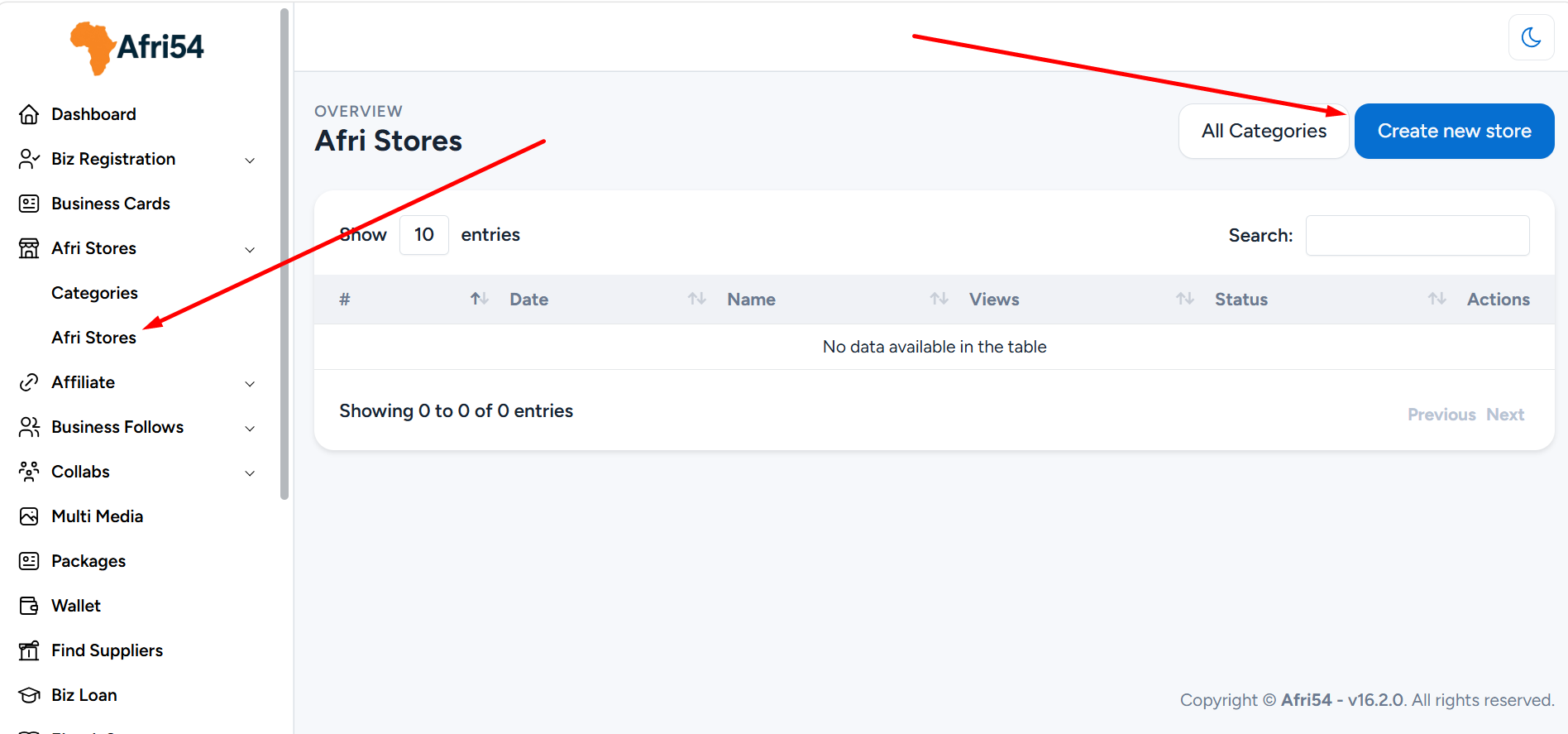
D. To learn more about creating and managing your Afri Store, please click here.
If you would prefer professional assistance, you can hire a designer to set up your Afri Store for you at a cost of $5. Click here to get started.
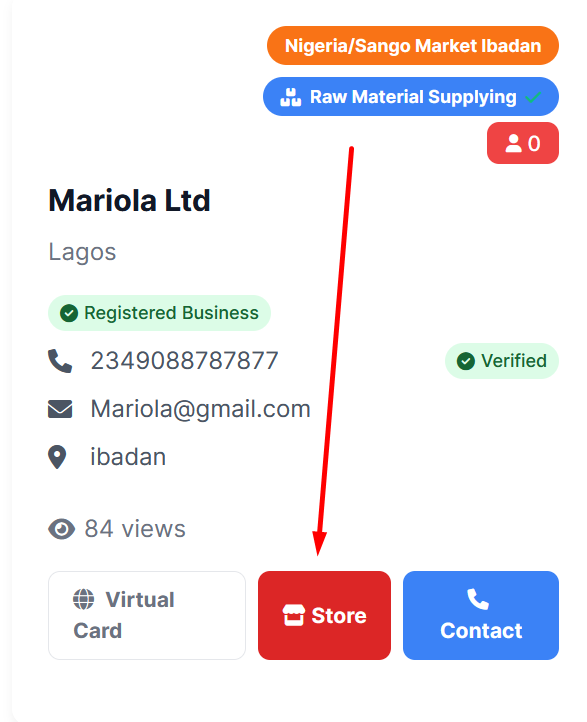
Once set up, it will instantly reflect in your business listing
5. Affiliate
The next section is Affiliate.
Within this section, you will find two sub-options:
- Affiliates
- Withdrawal Request
A. Affiliates
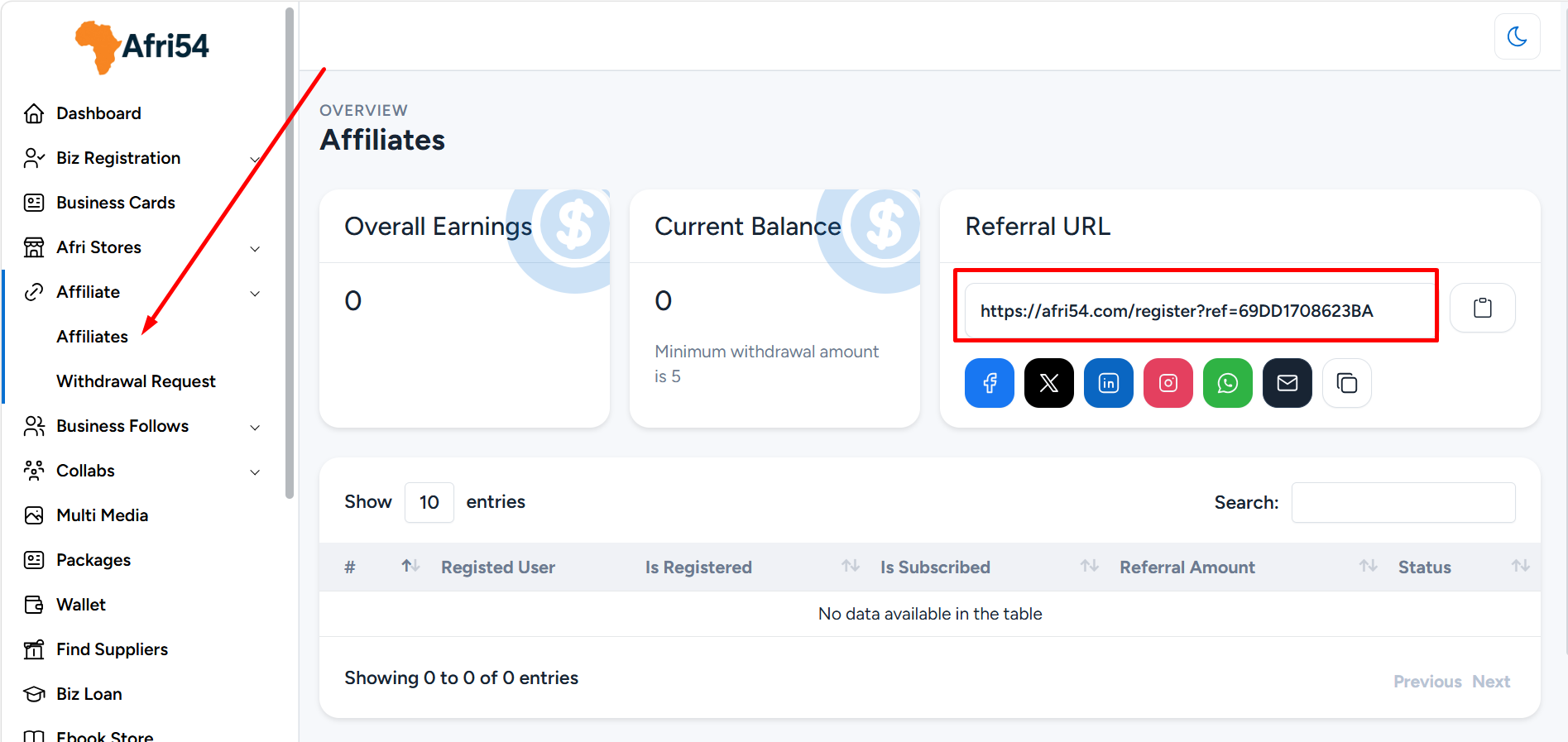
Afri54 provides you with the opportunity to earn by referring the platform to your friends, family, and colleagues using your unique affiliate (referral) link.
When someone signs up through your link and purchases a plan, you earn a commission as specified in your business dashboard. There is no limit to how much you can earn under this program.
Click on the Affiliates button to view your referral link. You can share this link across your social media platforms and other channels to maximize your earnings.
B. Withdrawal Request
Click on Withdrawal Request to transfer your earnings to your bank account.
In this section, you will be required to provide your bank details in order to process your withdrawal.
9. Business Follows
The next section is Business Follows.
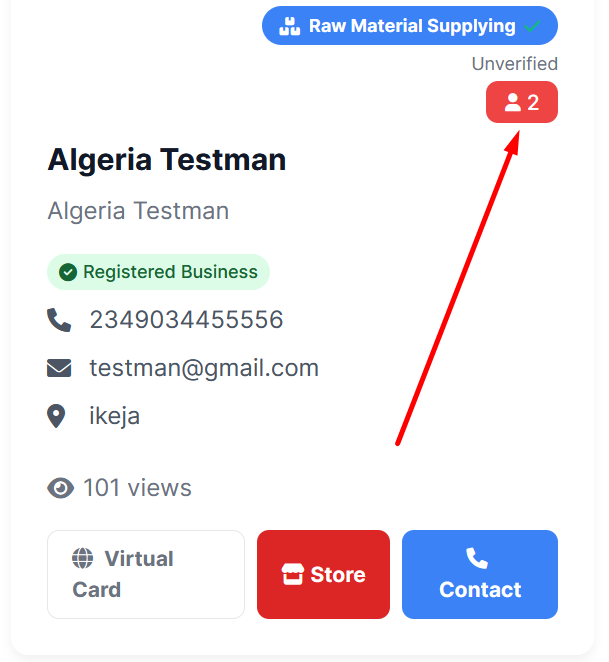
In this section, you can view the businesses that are following you, as well as the businesses you are following. You also have the option to unfollow any business at any time.
Additionally, your total number of followers can be seen on your profile.
Part 2 continues here
Found this helpful?
( 21 out of 40 found helpful )